Home
Accessibility at The Library
Bayside Libraries strive to be a welcoming and functional space for people of all abilities. We are committed to ensuring our services are accessible to all community members, and we have resources available for use in the library and at home.
If you have any questions of suggestions concerning accessibility at the library, please contact our Positive Ageing Librarian.
Visiting The Library
All Bayside Library locations provide accessible parking spaces, wheelchair access to the building, accessible toilets and automatic doors. The multi-use room at Sandringham Library has a hearing loop.
For children visiting the library, try sharing Our Library by Donna Rawlins or Hooray, Hooray it's library day by Julie Anne Grasso to prepare them for their visit.
Accessibility Features on Public PCs
All Bayside Library locations offer desktop PCs for use, running Windows 11. All branches also offer large-font keyboards for use. Ask staff at the reception desk.
Windows 11 offers a comprehensive suite of built-in accessibility features to assist users with various needs, including Vision (like Narrator, Magnifier, and Colour filters), Hearing (Live Captions, mono audio), Mobility (Voice typing, On-screen keyboard, and Voice access), and Cognitive and Learning (Immersive Reader, Focus sessions).
These features can be found in the Settings app under Accessibility, allowing users to customize display settings, keyboard behavior, and interact with their PC using different input methods.
Vision Features
Magnifier: Zooms in on specific areas of the screen to make text and images larger.
Color Filters: Adjusts the colors on your screen to help distinguish between subtle color differences, useful for color blindness.
High Contrast Themes: Offers customizable color themes and themes to reduce screen brightness, helping those with light sensitivity or lower vision.
Hearing Features
Mono Audio: Converts stereo sound into a single audio channel, which can make sounds easier to hear.
Visual Audio Alerts: Flashes the screen or shows alerts in the title bar to provide visual feedback for notifications.
Mobility Features
On-Screen Keyboard: Provides a visual keyboard on the screen for typing, which can be used with a mouse or other input devices.
Keyboard Accessibility: Features like Sticky Keys (for pressing keys one at a time), Filter Keys (to ignore repeated keystrokes), and Toggle Keys (for audible feedback).
Cognitive and Learning Features
Focus Sessions: Helps improve focus, attention, and overall reading fluency.
How to Find and Use These Features | 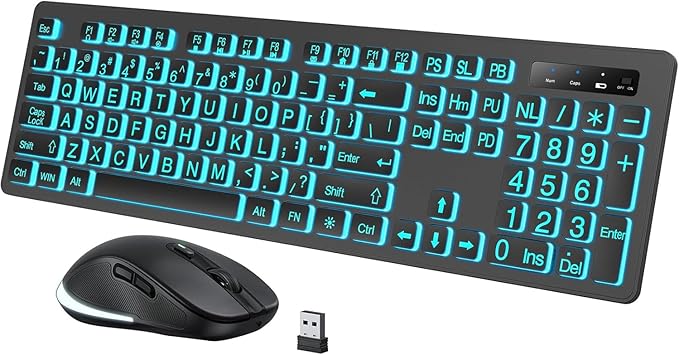 |
eLibrary Collections
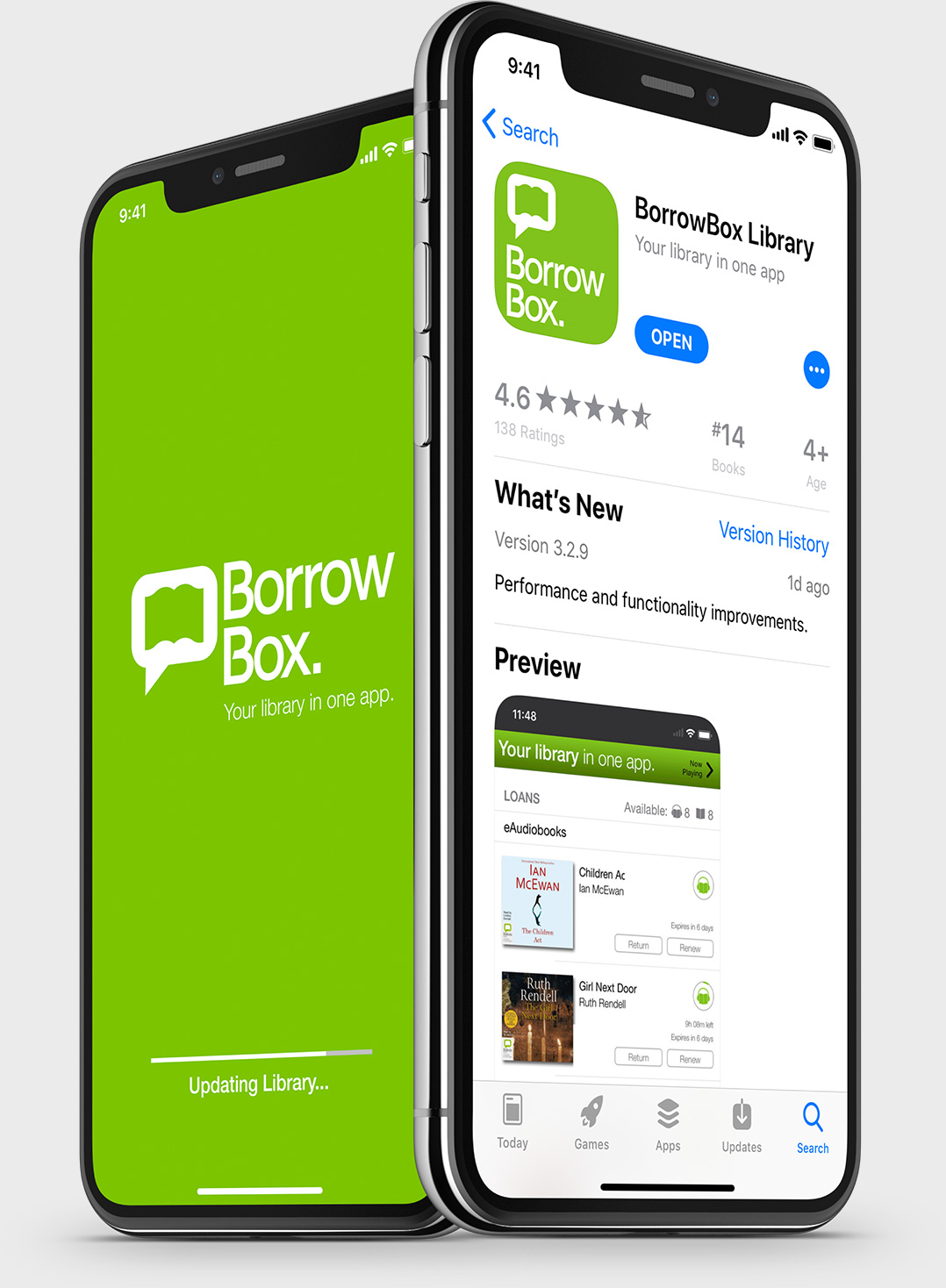
One of great things about eBooks is their accessibility. A font is available on iOS and Android that makes text more readable for dyslexic users. Our BorrowBox app is optimised to work with Apple's VoiceOver functionality to enable the eBook to be 'read' aloud simply by tapping the screen. You can also adjust the display to create the best reading experience for you. Heavy print editions only weigh as much as your device, which is great if you've reached a point in your life when holding books to read has become more difficult.
Our BorrowBox platform offers a range of accessibility features, and is compatible with all the most popular screen readers and offers key features including:
Dyslexic users can benefit from a wide range of features that make enjoying stories possible.
|
|
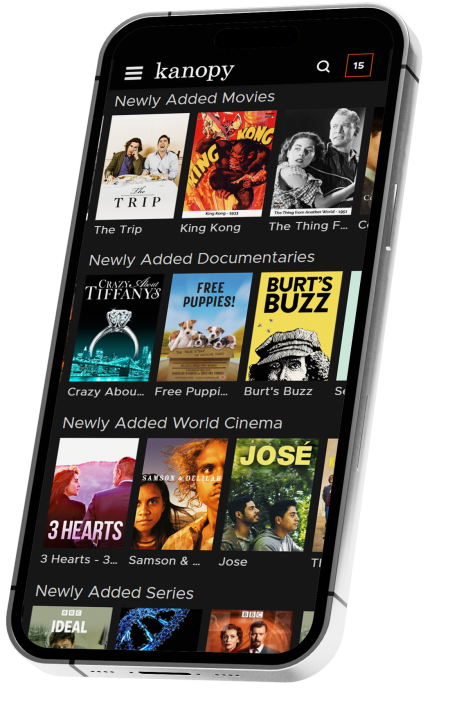
Our streaming film service, Kanopy, provides descriptive audio and closed captioning option.
Displaying closed captions or subtitles
|
|
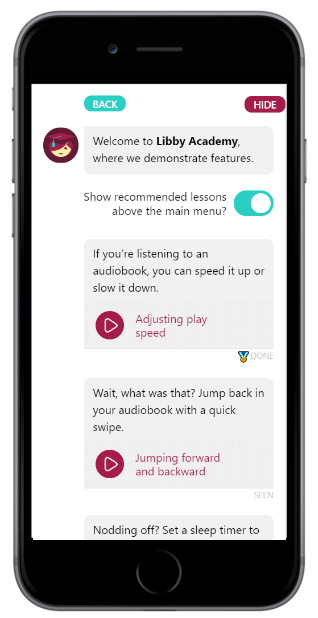
The Libby app for eBooks, eAudioBooks and eMagazines includes a range of accessibility features.
|  |
Studying at The Library
The study rooms at Sandringham Library have adjustable lighting and, while not soundproof, block out most background noise. All our libraries have height adjustable desks. Laptop tables are available for use in the library at Brighton.
Home Library
We deliver books, CDs, DVDs, and other materials to your home if you are unable to come to the library due to a disability or other mobility issues. You may sign up to receive homebound delivery on either a temporary or long-term basis.
We also support our Home Library members with new technology including Envoy Connect's, Kobo and Kindle eReaders.